> For the complete documentation index, see [llms.txt](https://docs.customer-photo-uploader.app/llms.txt). Markdown versions of documentation pages are available by appending `.md` to page URLs; this page is available as [Markdown](https://docs.customer-photo-uploader.app/user-manual/app-pages/photos.md).
# Photos
This page is dedicated to the management of all the photos that have been uploaded to the app. You can upload, approve or reject, delete them, etc.
### Upload Photo
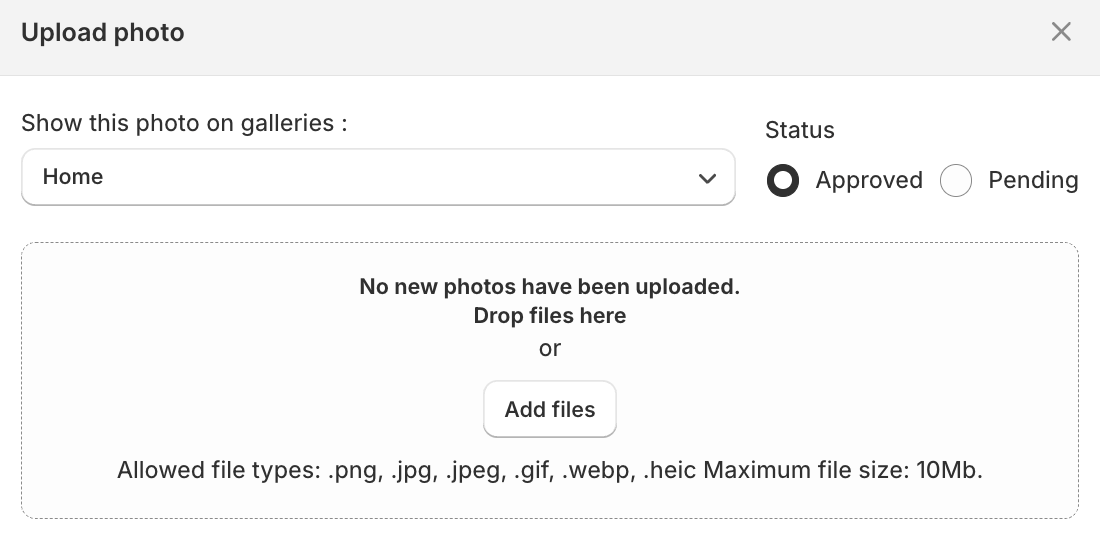
Click **“Upload Photo”** to easily add images to the Custom Galleries, including any photos your clients post on social media or other selling platforms.
While uploading the photo or photos, you can:
* Choose which gallery it will be added to.
* Grant the respective status - Approved or Pending.
After the upload of the photos, you’ll get a window at the bottom right corner of the screen, where you’ll be able to review the upload status of each photo. There might be:
* Uploading - meaning it’s still in process.
* Uploaded - successfully added.
* Failed - the file size or format is not supported by the app, so the photo is not added.
### Structure of the Photos page
For your convenience, the photos on the page are broken into views by status for easier navigation. The list of views:
* All
* Pending
* Approved
* Rejected
### Editing the Photos
After adding the photo to the Customer Photo Uploader application, either by you or your customer, there are several different editing and managing actions that can be taken.
#### Change the status of the photo
The photo can have the following statuses:
* **Processing.** The photo is being uploaded to the application.
* This is an automatic and temporary status.
* **Pending.** The picture should be reviewed and set up with either Rejected or Approved status. Until then, it’s not visible on the website.
* This status can be chosen during the upload of the photo by the store owner or after the customer has added the photo.
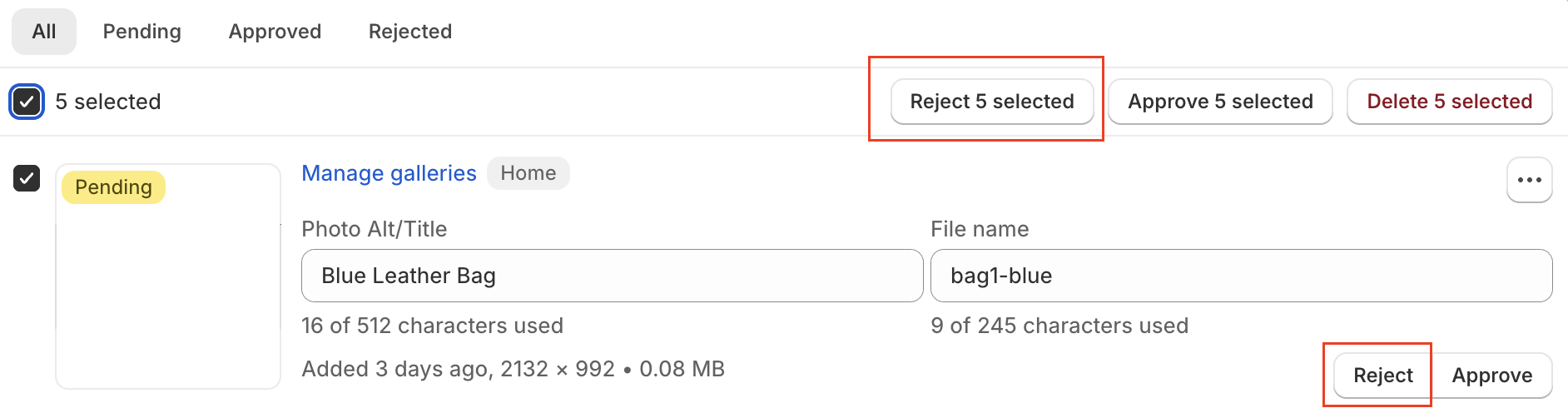
* **Rejected**. The photo has been decided not to be reflected on the store’s website.
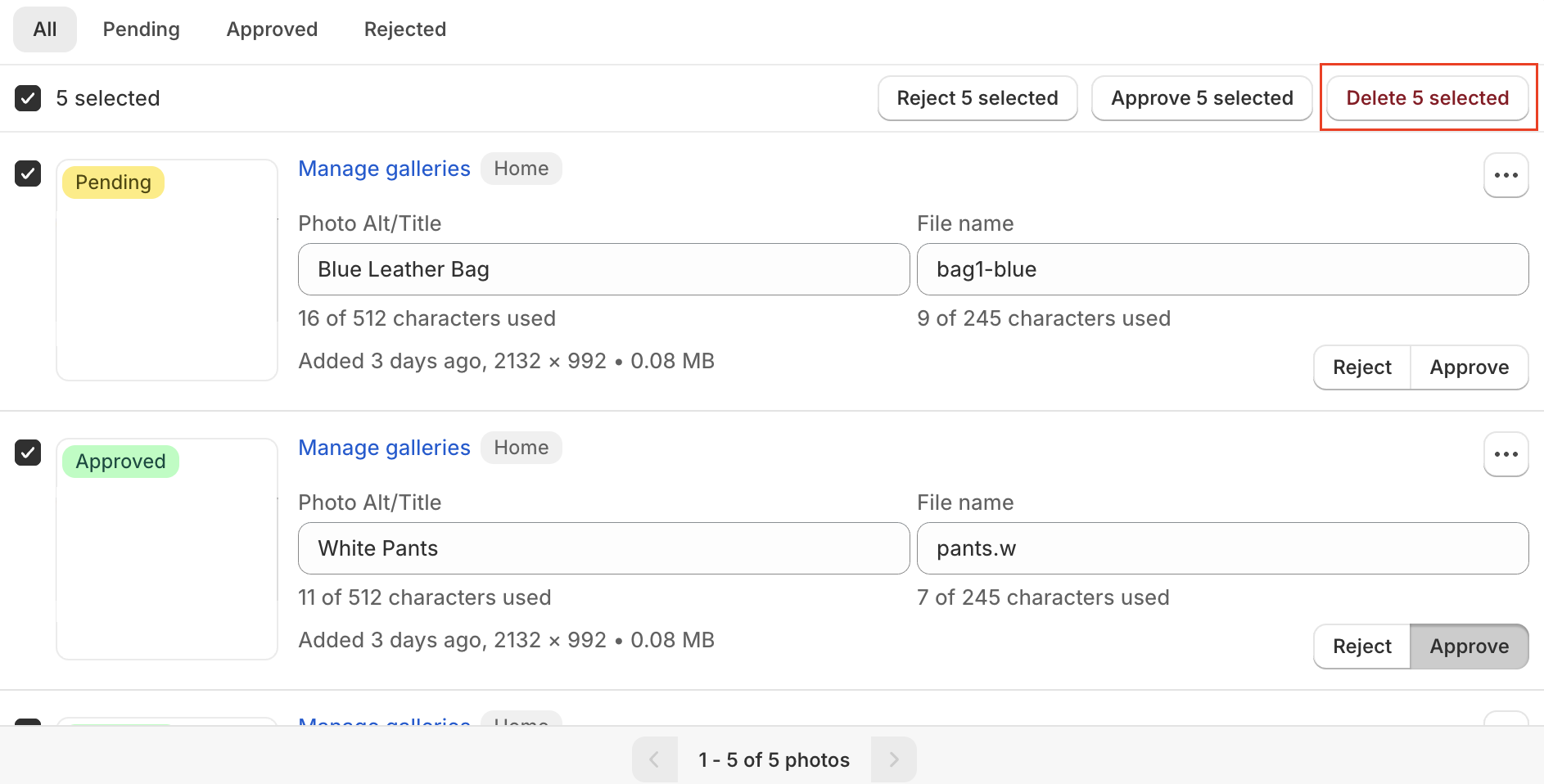
* To reject the photo, you can use the Reject button near the specific picture, or reject several photos at once by using bulk editing.
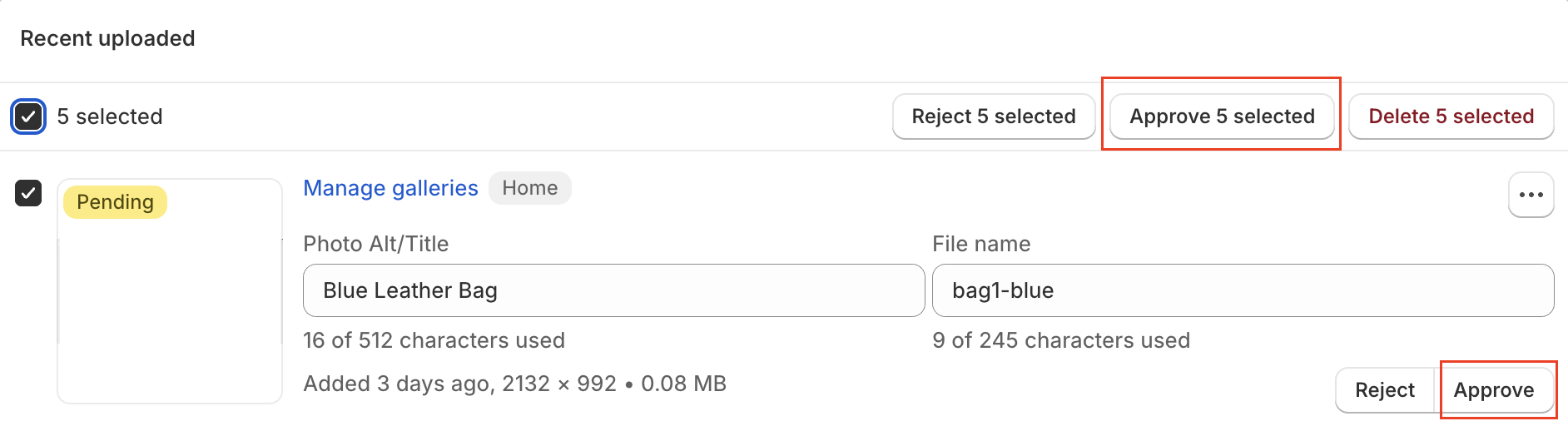
* **Approved**. The image will appear in the set gallery or on the product page on the store’s website.
* To reject the photo, you can use the Approve button near the specific picture, or approve several photos at once by using bulk editing.
#### Assign the photo to the gallery
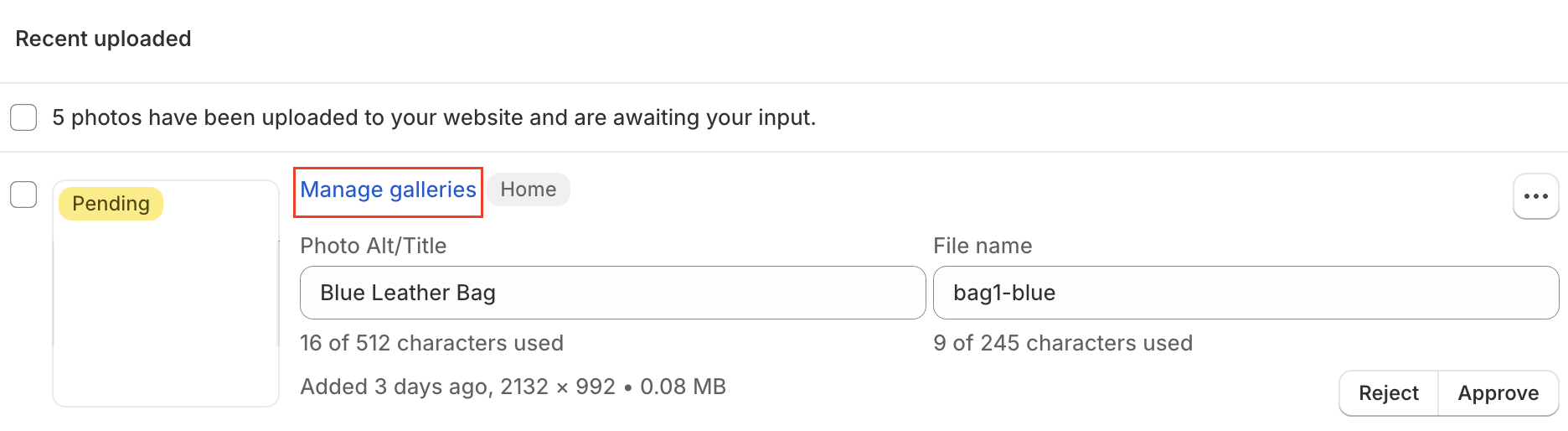
To add the uploaded picture to a specific gallery - customer or product, utilize the **Manage galleries** button.
After clicking the button, the window with the following fields opens:
1. In the first field, you can choose which Custom Galleries you’d like to reflect the photo in. All the Custom Galleries chosen for a picture are shown in the top left corner.
2. The second field stands for the Product Galleries that could be chosen for the specific picture as well.
{% hint style="info" %}
The number of available Custom and Product Galleries of choice for an image depends on your Customer Photo Uploader subscription plan.
{% endhint %}
#### SEO image data editing
It’s also possible to change the SEO data - Photo Alt and Title of the image that was uploaded, and edit the name of its file. You can do that by simply editing the respective fields in the specific photo section.
{% hint style="info" %}
We highly recommend filling your Photo Alt/Title field with the image-related description to improve your SEO results.
{% endhint %}
#### Link products to the photo (Shoppable)
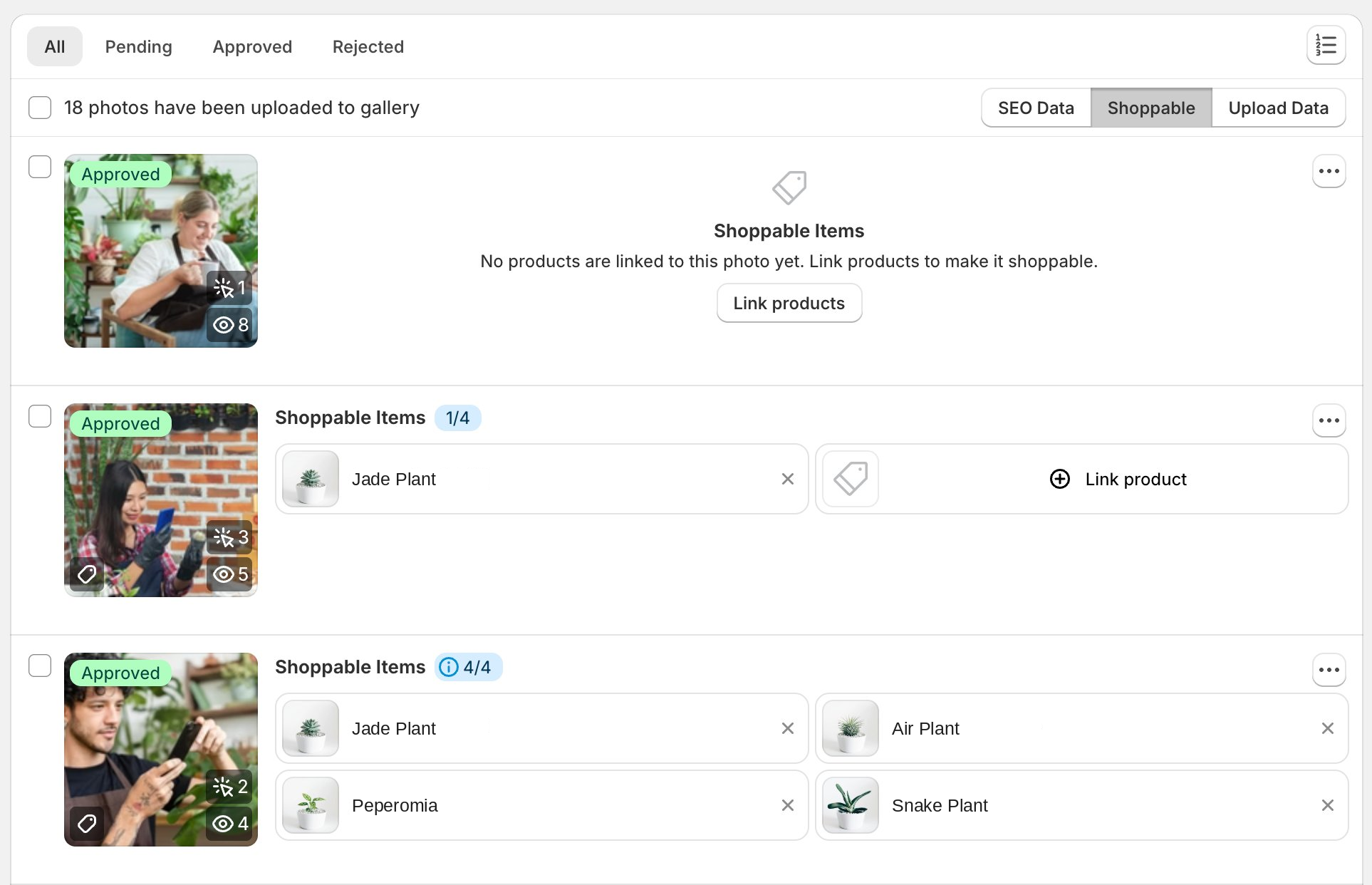
The **Shoppable** tab allows you to link your store's products directly to the photos, turning your galleries into a shoppable experience for your customers.
To link the products, switch the data view above the photo list to **Shoppable** and click the **Link products** button near the specific photo. In the native Shopify selection window, you can choose up to 4 products per photo.
All the linked products are displayed near the photo as cards with a counter (e.g., 1/4). To remove a product, click the "x" on its card; to add more, use the **Link product** button.
On your storefront, the linked products appear inside the lightbox when a customer opens the photo, each with a "View Product" button leading to the product page. You can configure the position of the Shoppable gallery in your [Theme editor settings](https://docs.customer-photo-uploader.app/user-manual/getting-started/gallery-widget-configuration).
{% hint style="info" %}
The visibility of the Shoppable tab in your admin is managed on the [Settings page, Content Moderation tab](https://docs.customer-photo-uploader.app/user-manual/app-pages/settings/content-moderation).
{% endhint %}
#### Manage the image description and utilize the customer's email
After enabling the Upload data settings toggle on the Settings page, Content Moderation tab, you'll see the option to switch between different data options for each image. Read more about enabling this setting [here](/user-manual/app-pages/settings/content-moderation.md#upload-data-settings).
**Upload Data** includes the fields of Description and Email, with the empty space or the information filled in by your client.
You're always able to change the Description field of the image, or upload your text to the added image to make it work for your brand.
Additionally, you can utilize the customers' emails for the marketing campaigns and extension of the returning purchases. If you need any assistance to set this up with the Shopify Flow, please read [this article](/user-manual/app-pages/settings/integration.md) or contact us at .
To make the info from the Description field visible for your customers during review of the photo in the gallery on your store, please turn on the toggle for the "**Show photo description"** setting in the widget, as mentioned [here.](/user-manual/getting-started/gallery-widget-configuration.md#layout-settings)
#### Delete the photo
To delete the photo, you can choose any of the following options:
1. Bulk editing by using the checkboxes near each image.
2. One photo deletion, for which you open the ellipsis ( … ) sign.
### View the photo in Files
Additionally, you can review your approved photos in the Files in your Shopify Admin.
However, please be aware that if you edit the image directly in your Shopify Files section, the changes will be reflected on your website, but they will not be reflected inside the Customer Photo Uploader app. The app will continue to display the original, unedited version.
### FAQ about Photos page: Can I upload multiple photos at once?
Yes. When clicking the **Upload Photo** button, you can select and upload several images at the same time. Each photo will have its own upload status displayed in the bottom-right corner of the screen.\
\
However, your customers can only submit one photo per upload.
How many products can I link to a single photo?
You can link up to 4 products to each photo via the Shoppable tab. This limit keeps the lightbox clean and easy to navigate for your customers.