> For the complete documentation index, see [llms.txt](https://docs.customer-photo-uploader.app/llms.txt). Markdown versions of documentation pages are available by appending `.md` to page URLs; this page is available as [Markdown](https://docs.customer-photo-uploader.app/user-manual/app-pages/custom-galleries.md).
# Custom galleries
Create standalone photo galleries for any page of your Shopify store: homepage, landing or promo pages. Manage, hide, and fill them with UGC photos.
The page is dedicated to managing Custom Galleries, meaning those that are not linked to a specific product**.** You can create a gallery for any page (for example, *“Home Page Gallery”*, *“Summer Promo”*, etc.) and fill it with photos.
### Page overview
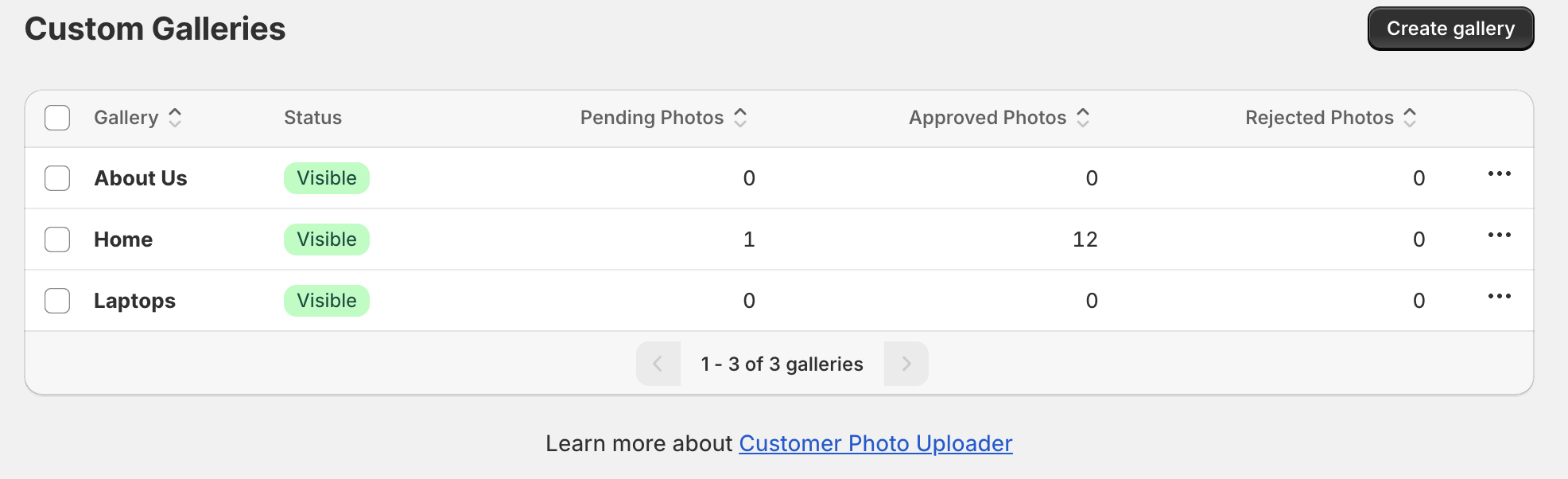
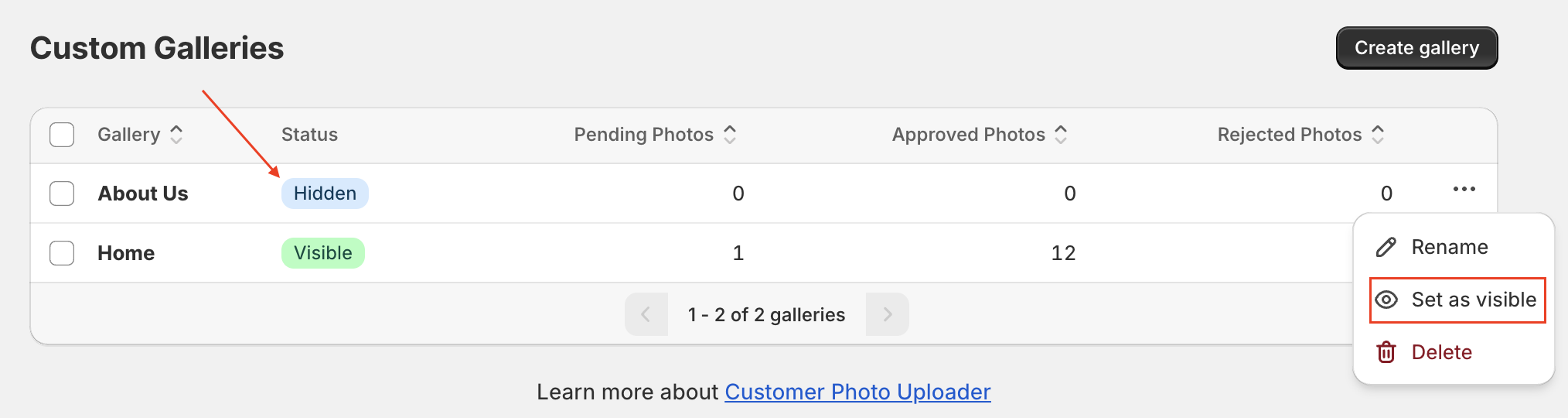
This page provides a complete overview of your Custom Galleries. You can review some info about your galleries or configure the display of those on the page. The exact functions include:
* Sort the galleries in ascending and descending order by their name or by the status of the photo.
* Review the number of Pending, Approved, and Rejected photos by each gallery.
* Review the status of each gallery.
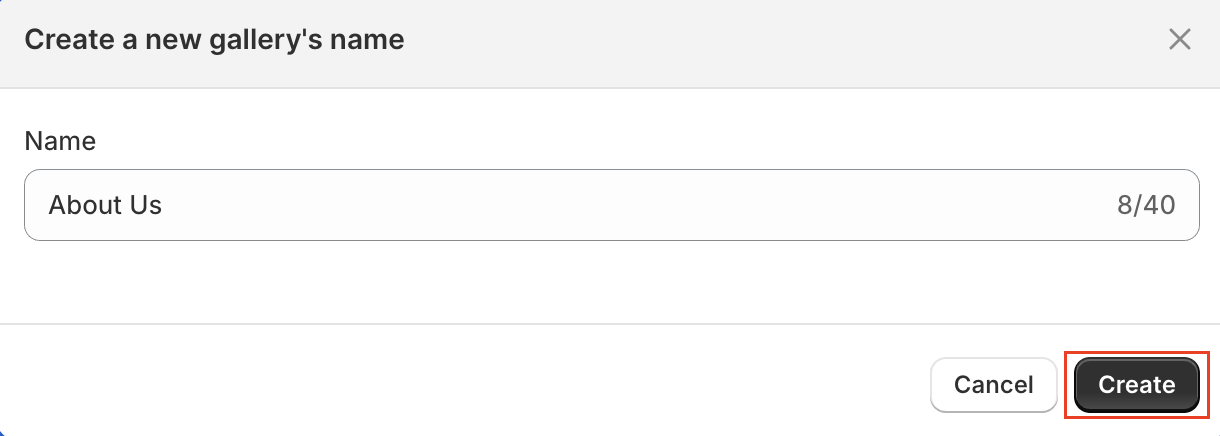
To create the gallery, utilize the Create gallery button. After tapping on it, you’ll see the window, where the only field you’ll need to fill is the gallery name. Use the button Create to finish the process.
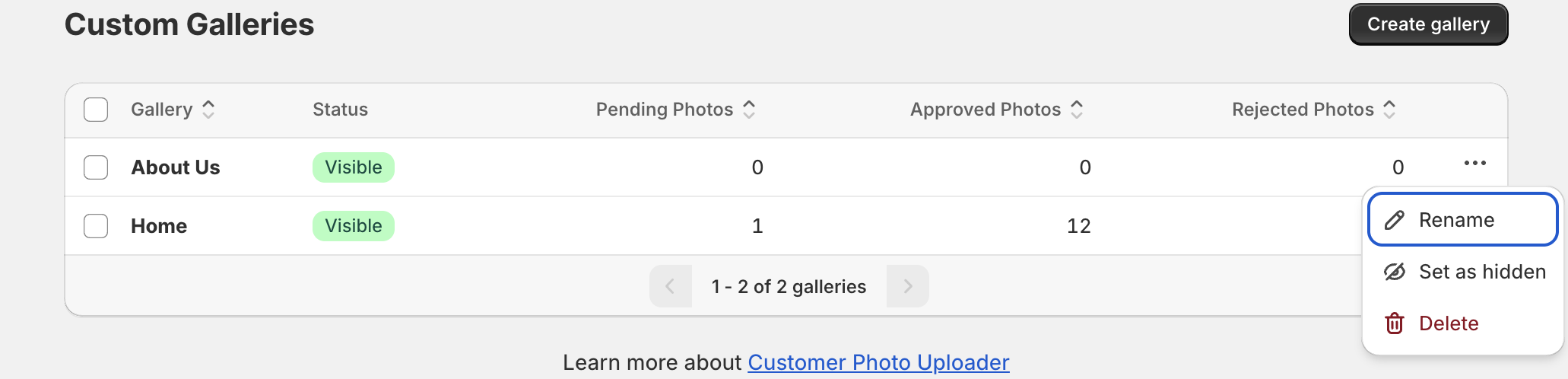
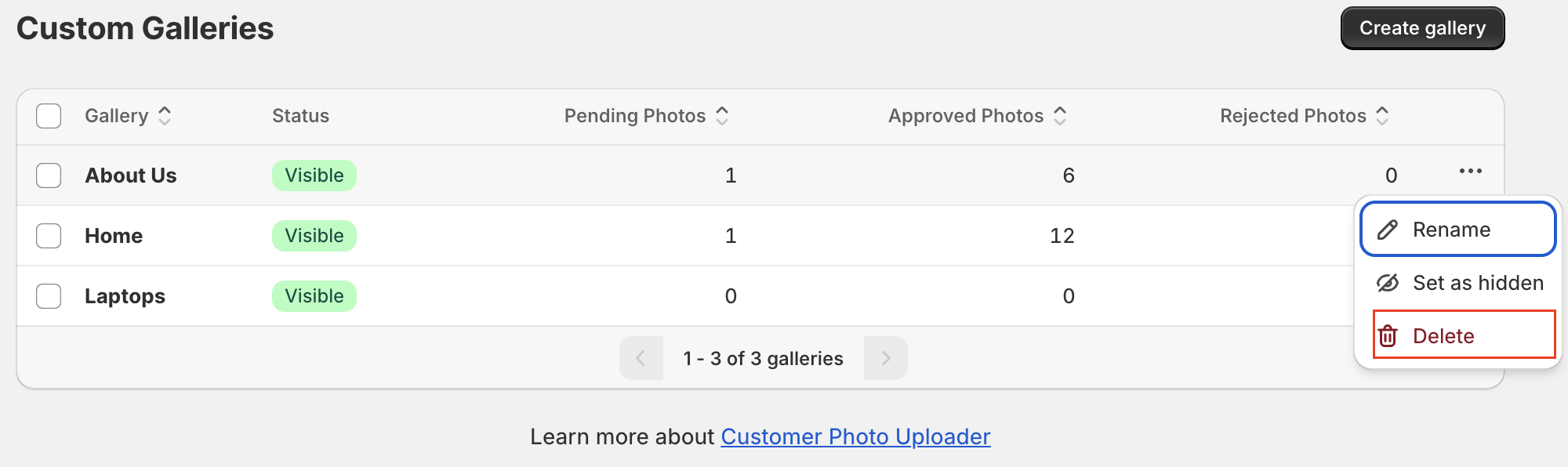
With all the created Custom Galleries, you can process the next changes:
* Rename the gallery
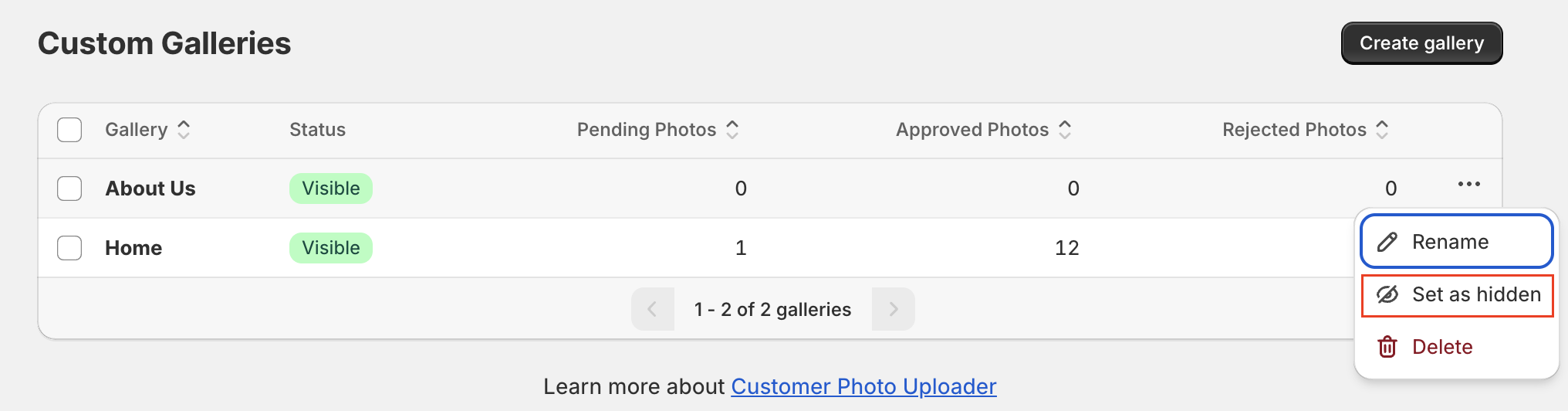
* Hide or unhide the gallery
* Delete the gallery
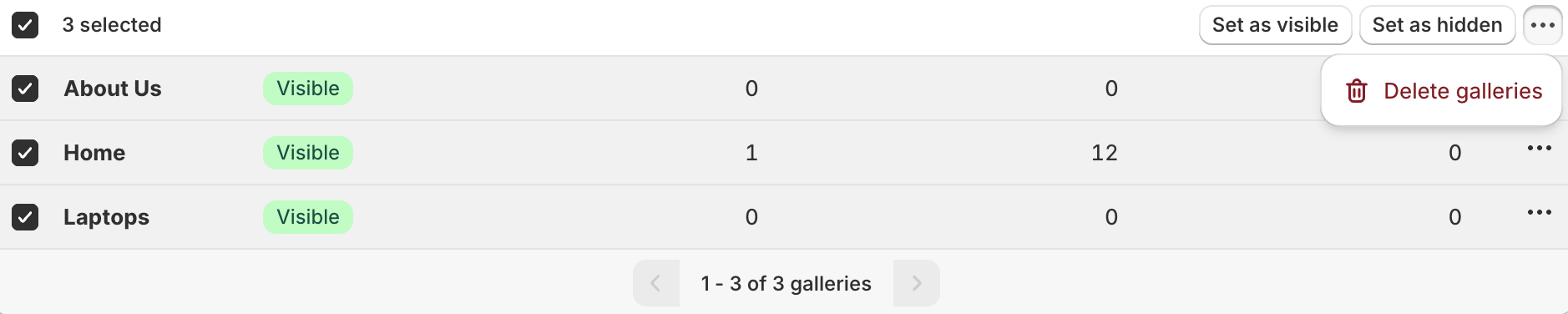
You can also delete or set the galleries as visible or hidden via the bulk editing.
### Main Theme App Block Status
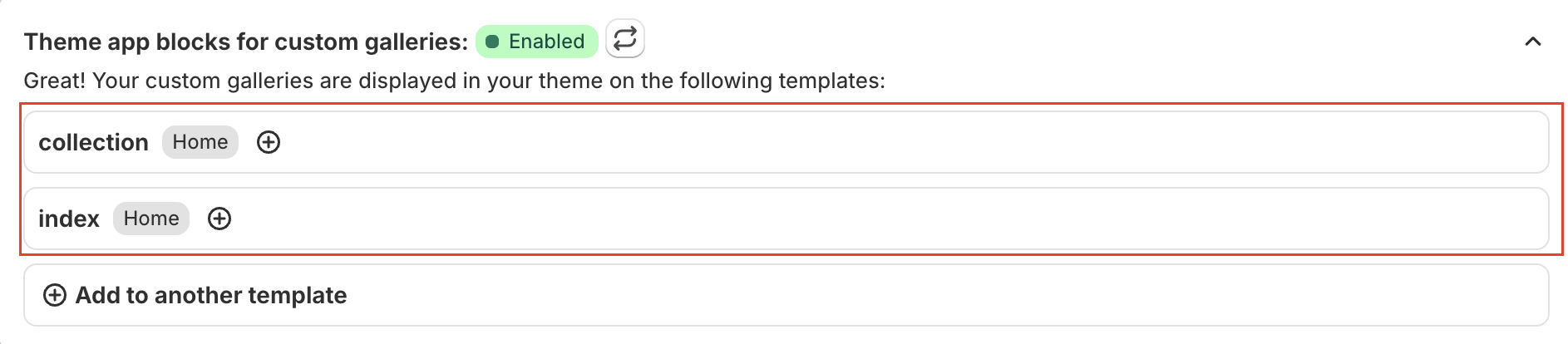
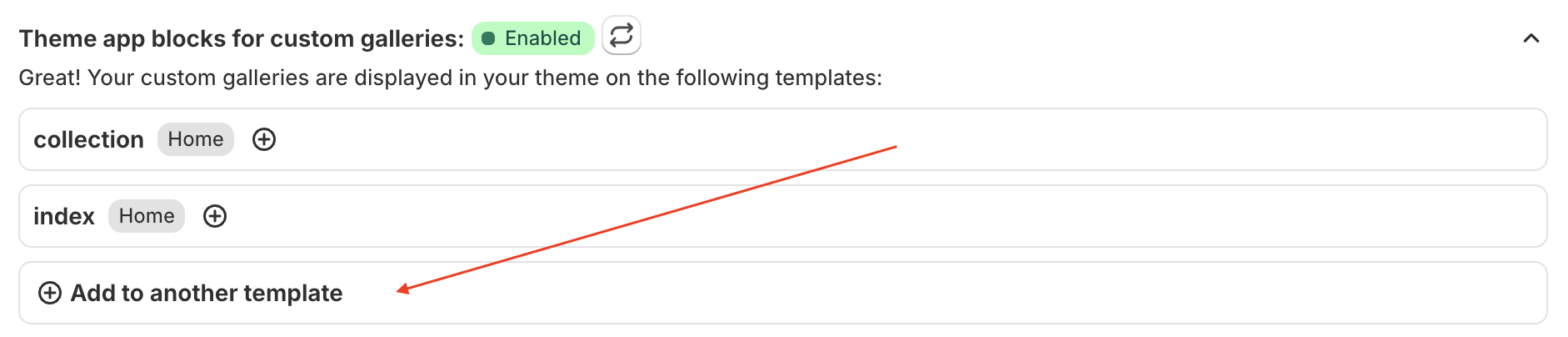
This section allows you to see whether the Custom Galleries are enabled or disabled on your Theme.
In case the Custom Galleries are enabled, there is an option to review which exact templates they are added to.
Via the “Add to another template” feature, you can easily select from the drop-down list the needed template and add the gallery to more templates or to the first one.

### Editing the Custom Gallery
To redact the specific Custom Gallery, you navigate to the respective gallery that you’d like to edit.
After clicking on it, you’ll be redirected to the page with the advanced functions.
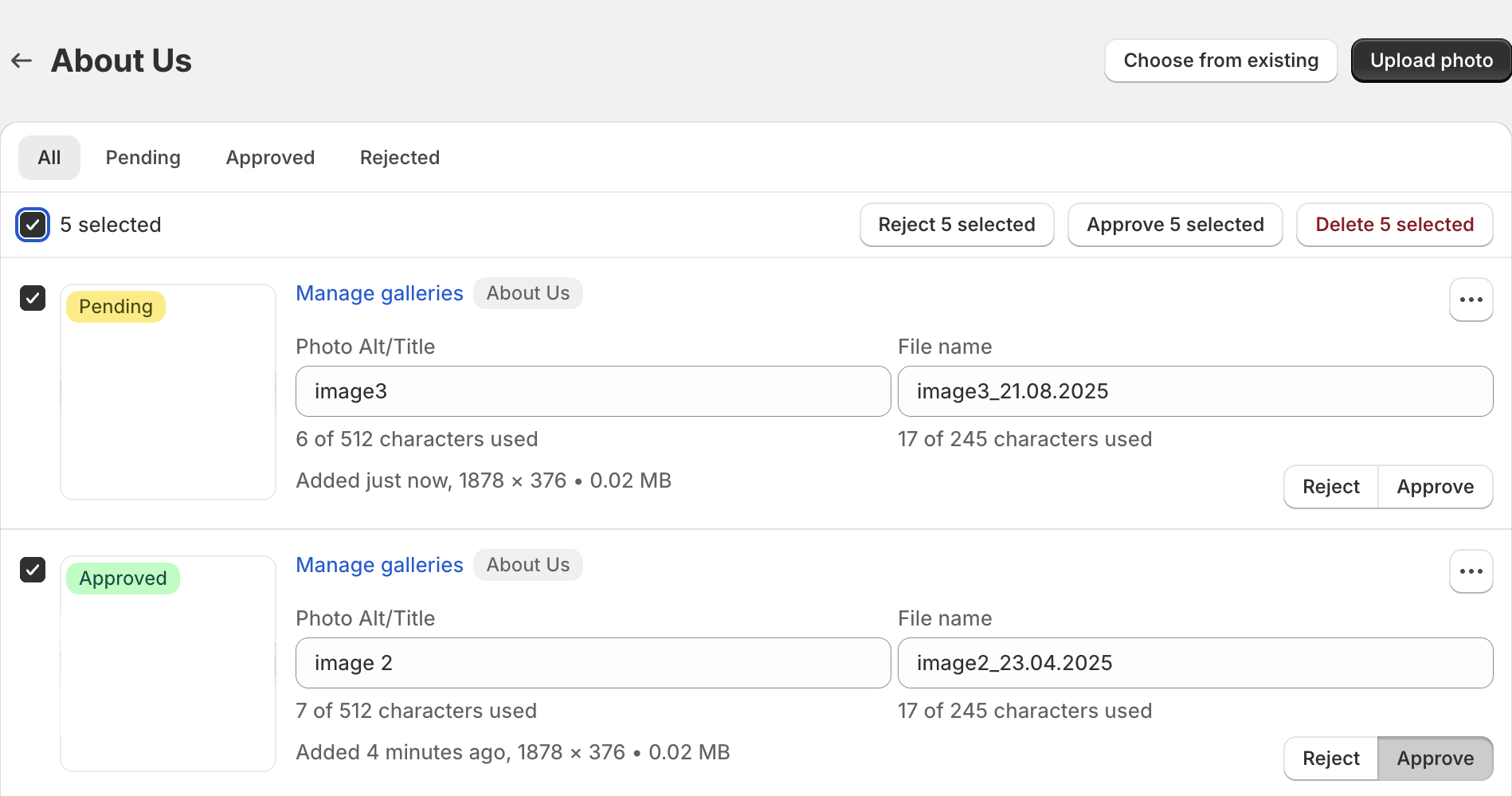
On this page, you can review the photos assigned to that specific Custom Gallery by each of the statuses:
* All
* Pending
* Approved
* Rejected
#### Sort the photos in the gallery
To change the order in which the photos are displayed in this gallery, click the sorting icon in the top right corner of the photo list:
Then choose one of the sorting options:
* **Newest first** — the most recently added photos appear first.
* **Oldest first** — the earliest added photos appear first.
* **Manual** — arrange the photos in your own custom order.
* **Global** — follows the default sorting order from the [Settings page, Content Moderation tab](https://docs.customer-photo-uploader.app/user-manual/app-pages/settings/content-moderation); the current global value is shown in brackets (e.g., "Global (newest)").
The selected order defines how the approved photos appear in this gallery on your store as well.
#### Upload photo
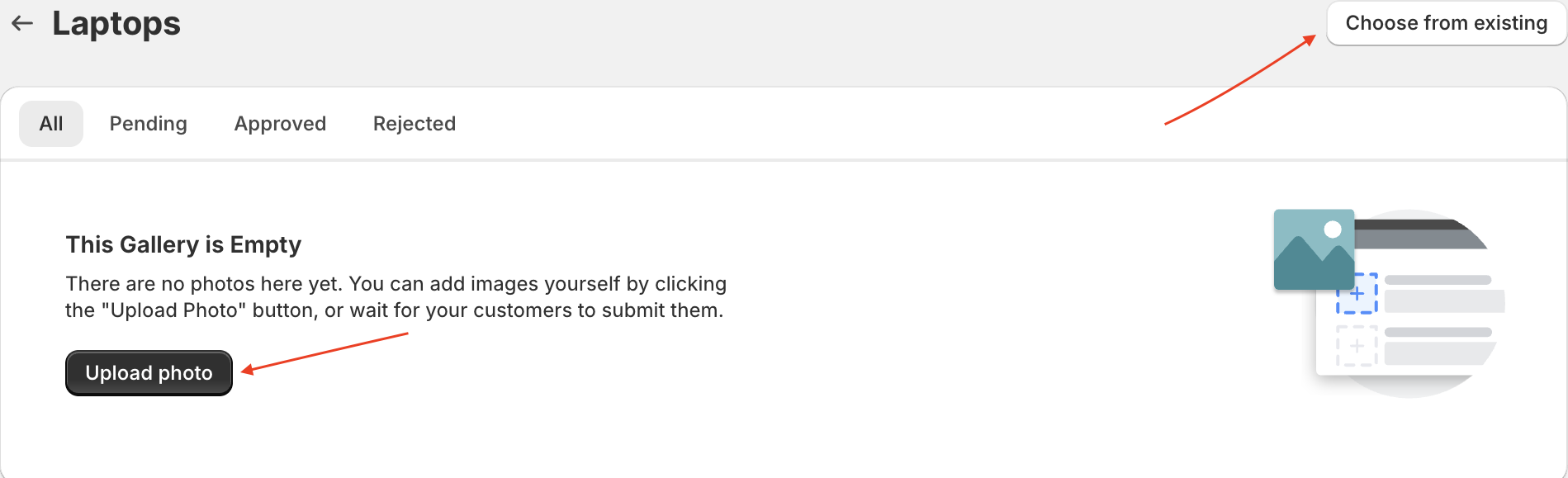
This button on the Custom Galleries page is utilized in the same way as on the Photos page. [Read more about it here.](/user-manual/app-pages/photos.md#upload-photo)
However, there is one additional option - to add the photo from the already uploaded. To do this, use the **Choose from existing** button.
{% hint style="info" %}
In case you uploaded the photo to one Custom Gallery and would like to add it also to another, use the **Choose from existing** button on the second Custom Gallery page or via the **Manage galleries *****\[Link to the Assign the photo to the gallery block on the Photos page]*** button on the Photos page.
{% endhint %}
#### Change the status of the photo
In the Customer Photo Uploader application, the photo can have different statuses, such as:
* Processing
* Pending
* Rejected
* Approved
[Learn more information on each status and how to change them on this page. ](/user-manual/app-pages/photos.md#change-the-status-of-the-photo)
#### Assign the photo to the gallery
Use the **Manage Galleries** button to assign a specific photo to any of your Custom or Product Galleries.
This feature provides the same editing option as on the Product Galleries page. To see the detailed overview,[ please follow this link](/user-manual/app-pages/photos.md#assign-the-photo-to-the-gallery).
Additionally, on the page dedicated to a specific Custom Gallery in the Customer Photo Uploader, you can perform [SEO image data editing](/user-manual/app-pages/photos.md#rename-the-photos-title-and-the-files-name), [link products to the photo (Shoppable)](/user-manual/app-pages/photos.md#link-products-to-the-photo-shoppable), [manage the image description, utilize the customer's email](/user-manual/app-pages/photos.md#delete-the-photo), [delete the photo](/user-manual/app-pages/photos.md#delete-the-photo)***,*** and [view the photo in Files](/user-manual/app-pages/photos.md#view-the-photo-in-files).
An advanced photo management option on a Custom Gallery page is the ability to **remove a specific photo from that gallery**. Please note that the photo will not be deleted permanently. You can still find it on the Photos page and assign it to another Product or Custom Gallery if needed.
### FAQs about the Custom Galleries page How do Custom Galleries differ from Product Galleries?
Custom Galleries are not linked to a specific product and can be created for any page (e.g., “Home Page Gallery” or “Summer Promo”). Product Galleries, on the other hand, are tied to individual products and display photos only on those product pages.
What do the statuses “Hidden” and “Visible” mean on a gallery?
A **Visible** gallery is available for you to choose in the Customize mode of your Theme editor, and therefore can be shown on your store or designated page, while a **Hidden** gallery is not displayed to customers. You can toggle these statuses individually or through bulk editing.
Will deleting a photo from a Custom Gallery remove it from the app completely?
No. Removing a photo from a Custom Gallery only unlinks it from that gallery. The photo will remain in the app library and can be added to other Custom or Product Galleries at any time.